
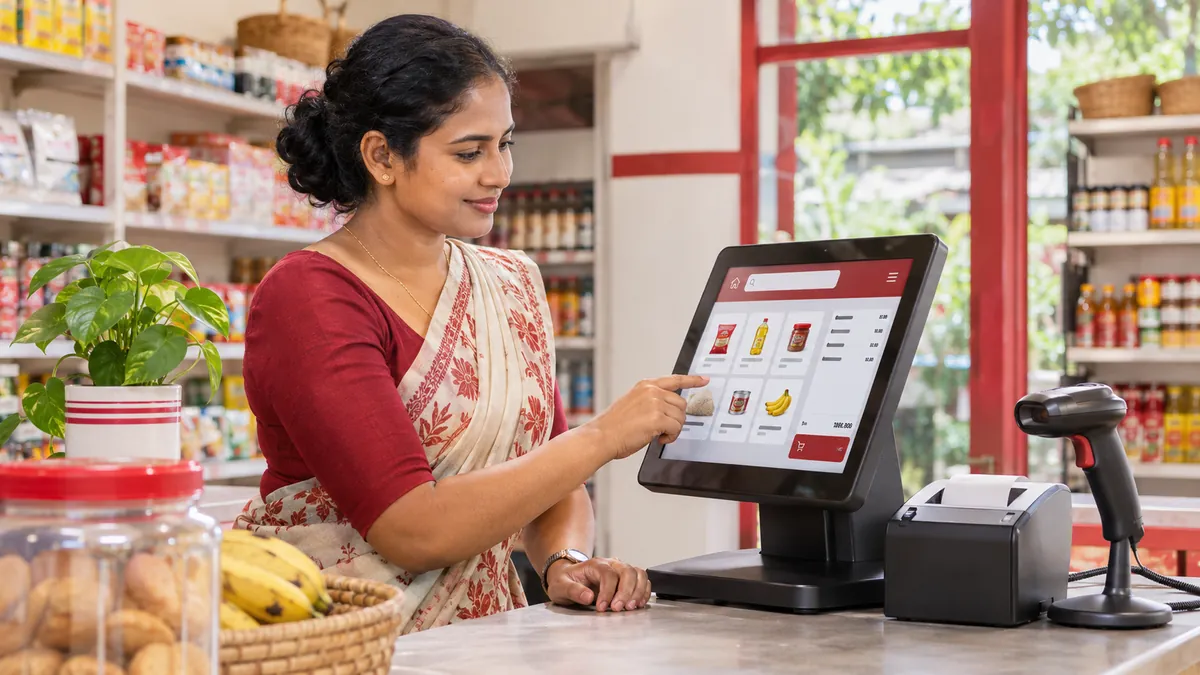
The best POS system in Sri Lanka for your business is the one that handles your real working day: a busy counter, a returned item, a stock delivery, a customer paying on credit, and the final cash count. A long feature list is useful only when those features fit how you sell.
If you are comparing a POS system in Sri Lanka, this guide gives you a practical way to make the decision. You will learn what to ask suppliers, which tasks to test in a demonstration, how to compare the full cost, and how to prepare your staff before switching systems.
Start here: write down your five essential tasks, test them with your own products, compare written quotations for the same scope, and check the support arrangement before paying. Use the steps below to turn that shortlist into a clear buying decision.
What Is a POS System, and What Are You Actually Buying?
A point of sale system records sales and connects them with business information such as products, stock, customers, and reports. Depending on the package, it can also support purchasing, restaurant orders, appointments, or multiple branches.
The complete setup has several parts: software, the computer or tablet that runs it, receipt printing, scanning, and any other equipment your counter needs. Payment processing is another part to clarify. Recording a card or QR payment in a bill does not necessarily mean the software connects directly to your bank's payment service.
When a supplier quotes a “POS machine,” ask exactly what is included. Is it a touchscreen computer, a bank card terminal, or a complete software-and-hardware package? An itemized quotation avoids buying equipment while leaving the main billing requirement unresolved.
Step 1: Choose Around Your Business Workflow
Before looking at software, describe a normal sale and the exceptions your staff face. Note your branch count, active counters, product volume, selling units, payment methods, and the reports you need. Separate requirements you need immediately from features you might use later.
- Retail shops and supermarkets: test barcode scanning, product search, variants, discounts, returns, and stock replenishment. Start with the retail POS system.
- Restaurants and cafés: follow an order from table selection to the kitchen and final payment. Review the restaurant POS software for your required table and kitchen workflow.
- Salons and spas: check appointments, services, staff allocation, commissions, and retail product sales. Explore salon and spa POS software.
- Wholesale and hardware businesses: test bulk quantities, selling units, trade pricing, dispatch, and customer credit. Compare the wholesale POS solution against those needs.
For a POS system for a small business, ease of use deserves particular attention. Have the staff member who will use it complete a sale after a short explanation. Count the steps needed to correct an item, find a product, and reprint a receipt.
Step 2: Compare Cloud POS, Offline POS, and Hybrid Operation
These terms describe how a system operates, but individual products differ. Ask the supplier to demonstrate the exact application and subscription you will use. A responsive mobile website, for example, is different from an installed application that can keep billing without internet.
| Setup | What to establish | Demo check |
|---|---|---|
| Cloud POS software | Internet requirements, remote reporting, user access, and any supported offline functions. | Open the manager view on a second device and check when a completed sale appears. |
| Locally installed POS | Where records are stored, how backups work, and how remote or branch access is provided. | Complete a sale and inspect the backup and recovery process. |
| Hybrid POS system | Which actions work offline, supported devices, and how synchronization handles reconnection. | Disconnect the internet, bill and print, then reconnect and reconcile the records. |
If you need an offline POS system in Sri Lanka, test the interruption rather than relying on the label. Check product lookup, returns, customer credit, and receipt printing individually. Some operations may still need a connection.
Power is a separate requirement. A computer, receipt printer, and local network still need electricity when the internet is unavailable. Include suitable backup power for the equipment that must remain active.
For a detailed comparison of connectivity, synchronization, backups, and costs, read our cloud POS vs offline POS guide for Sri Lanka.
Step 3: Check the Features That Protect Your Daily Records
Billing, Returns, and Payment Reconciliation
Ask the cashier to scan a basket, change a quantity, apply an authorized discount, take payment, and print the receipt. Then return one item. Inspect how the refund, payment records, and stock change. A fast sale is only part of a reliable billing workflow.
For product-code mapping, pack sizes, labels, and stock posting, see our barcode billing guide for Sri Lankan shops.
Test the payment methods your customers actually use. If you need split payments, credit sales, or bank and QR payment integration, confirm those functions separately. Ask how staff verify that an external payment has succeeded before closing the bill.
Inventory and Purchasing
A POS system with inventory management should fit how you receive, count, and sell products. Use a sample delivery to inspect purchase receiving, stock adjustments, and reorder information. If you sell by weight or length, use a fractional quantity in the demonstration.
For branches, trace a transfer from dispatch through receipt and check what happens while stock is in transit. If stock control is your main priority, use the inventory management system page to discuss your requirements in more detail.
Staff Access and Useful Reports
Log in as a cashier and then as a manager. Check who can edit prices, cancel bills, process returns, and view sensitive reports. Confirm how the system records these actions and what the manager can review afterward.
Choose reports around decisions: what to reorder, which products are moving, how payments reconcile, and which customers owe money. When a report shows profit, ask which costs it includes. A sales total or product margin alone does not describe every operating expense.
Receipts and Local Working Requirements
Check receipt readability using your actual product names and the languages your staff and customers need. Ask the supplier to demonstrate the required Sinhala, Tamil, or English handling rather than assuming every application supports the same options.
If your business needs particular invoice fields or tax settings, give the supplier the required format and have your accountant review the sample output. For invoice-focused workflows, explore billing software alongside the broader POS package.
Step 4: Compare the Total POS System Cost
For a fair POS software comparison in Sri Lanka, request the same scope from every supplier. Include the same number of counters, branches, users, required applications, and service period. A low monthly price can cover a different setup from the one your shop needs.
Use this budget structure:
First-year cost = setup + hardware + data preparation and training + twelve months of software and recurring services + applicable taxes.
For an annual subscription, use the quoted annual amount instead of twelve monthly payments. Check whether setup or training is already bundled so you do not count it twice. Include optional extras only when your business needs them.
- Software: subscription or licence, counter limits, branch limits, renewals, and paid modules.
- Hardware: terminal, printer, scanner, drawer, network equipment, and backup power.
- Onboarding: product preparation, opening stock, migration, configuration, and staff training.
- Ongoing services: support terms, connectivity, integrations, messages, maintenance, and consumables.
For PopitCart, check the current POS software packages and request a quotation for your business. Confirm whether hardware is separate, which setup services are included, and what changes when you add another counter. Use the POS system price guide for further budgeting questions, then base your decision on a current quote.
Step 5: Test Hardware Before Ordering Replacements
List the model and connection type of each device you already own. Ask the supplier to test the complete chain: scanning a product, creating the bill, printing a readable receipt, and opening the cash drawer. Printer support can depend on the operating system, driver, connection, and application.
Restaurants should also test kitchen routing and the network between stations. Shops selling weighed items should demonstrate their actual labels or scale workflow. If you need a customer display, show what the customer will see during the transaction.
Compare POS hardware bundles once you know what is needed. Reusing compatible equipment can reduce the initial purchase, but test it under the conditions of your counter before relying on it.
Step 6: Use a Simple Scorecard to Compare Suppliers
First, mark essential requirements as pass or fail. A system that cannot handle a mandatory selling unit or required workflow should not win because it has more optional features. For the systems that pass, this suggested scorecard helps organize the comparison:
| Area | Weight | Evidence to collect |
|---|---|---|
| Counter workflow | 30% | Your cashier completes a sale, correction, return, and receipt. |
| Stock and reporting | 25% | A delivery and sale produce the expected stock and payment records. |
| Reliability and devices | 20% | The required application and equipment pass the interruption test. |
| Support and onboarding | 15% | Training, migration responsibilities, and support terms are documented. |
| Total cost | 10% | A complete quotation fits your budget for the agreed scope. |
Rate each area from zero to five, then calculate rating ÷ 5 × weight. A counter-workflow rating of four earns 24 of its 30 available points. Add the five results for a total out of 100. These weights are a suggested buying tool, not an industry standard or a ranking of suppliers.
Keep a note beside each rating explaining what you observed. If something was only promised, request a demonstration or written clarification before treating it as confirmed.
Step 7: Agree on Support, Data Access, and the Switch
Ask who answers support requests, which channels and languages are available, what hours are covered, and how an on-site visit is arranged when needed. Confirm what is included in the subscription and which services cost extra. If local installation matters, our Colombo POS provider guide covers the setup discussion.
Discuss your data before signing. Ask what you can export, in which format, who can authorize exports, and what happens when the service ends. For locally stored records, ask how backups are created and how recovery is tested.
Plan the change in four stages:
- Prepare: clean product names, barcodes, prices, units, and customer records. Agree on the migration scope and keep a copy of the source data.
- Verify: check sample imports, count opening stock, and reconcile any customer or supplier balances being transferred.
- Train: let each cashier practise a sale, correction, return, and shift closing using training records.
- Launch and review: choose a suitable changeover time, avoid double-recording real sales, and compare the first day's receipts, payments, and stock.
Agree on who signs off the opening data and who is available during launch. A clear handover is especially useful when the owner, stock keeper, and cashier are different people.
If your records are in spreadsheets, our Excel-to-POS migration checklist covers source backups, field mapping, test imports, reconciliation, and the changeover.
Where PopitCart Fits Your Shortlist
PopitCart POS software for Sri Lankan businesses brings together billing, inventory, customer information, and reporting, with dedicated retail, restaurant, salon, and wholesale solutions. That gives you a starting point for a demonstration matched to your industry.
Package details matter: Pro includes the hybrid Windows application, while Elite also includes the hybrid Android application. Confirm the applications, counters, branch requirements, and support you need in the selected package. Bring your own products and devices so the team can demonstrate the workflow you will actually use.
Use the same checklist for PopitCart as for any other shortlisted system. The decision should follow the tasks completed, records produced, and costs agreed in your demonstration and quotation.
Frequently Asked Questions About Choosing POS Software
How do I choose the best POS system in Sri Lanka?
List the tasks your business must handle, then test each shortlisted system with your own products and staff. Compare checkout, stock updates, returns, reporting, offline operation, hardware compatibility, training, and the complete cost. Treat an essential requirement as a pass-or-fail condition before comparing optional features.
What is the difference between POS software and a POS machine?
POS software manages sales and related business records. A POS machine may mean the computer or touchscreen running that software, or a bank card terminal. A card terminal alone does not replace stock management and billing software. Ask suppliers to itemize the software, computer, payment terminal, printer, scanner, and cash drawer in their quotation.
Should I choose a cloud POS system or an offline POS system?
Choose around your actual workflow and connectivity. Check whether you need remote reporting, local billing without internet, or both. In a hybrid system, test which functions remain available offline and how sales synchronize after reconnection. The terminal, printer, and any required network equipment still need electricity.
What should a small business include in its POS budget?
Include the subscription or licence, setup, hardware, data preparation, training, support, connectivity, and backup power. Ask about charges for extra counters, branches, integrations, messages, and renewals. Compare the same period and scope across suppliers and confirm applicable taxes in the written quotation.
Can I keep my existing barcode scanner and receipt printer?
Possibly. Compatibility depends on the exact model, connection type, operating system, and POS application. Give the supplier your device details and test product scanning, receipt printing, and cash-drawer opening before buying or reusing equipment.
Can I move from spreadsheets or another billing system to PopitCart?
Discuss migration with the PopitCart team before agreeing on setup. Provide a sample product list and describe the customer, supplier, opening-stock, and credit records you need to move. Confirm the supported import format, scope, cost, and responsibilities, then verify the opening balances before going live.
How can I compare PopitCart packages for my business?
Review the current packages on the PopitCart homepage and request a demonstration of your own workflow. Confirm the applications, counters, branches, hardware, setup, and support included in the quotation. Call 011 268 7645 or use the contact page to discuss your requirements.
Choose with a Demo Built Around Your Business
A successful POS purchase starts with clear requirements and a tested workflow. Bring a few products, your busiest counter scenario, your existing device details, and the reports you want to review each day.
Book a free PopitCart demo, call 011 268 7645, or email hello@popitcart.com. We can discuss the software, equipment, and onboarding your business needs.