
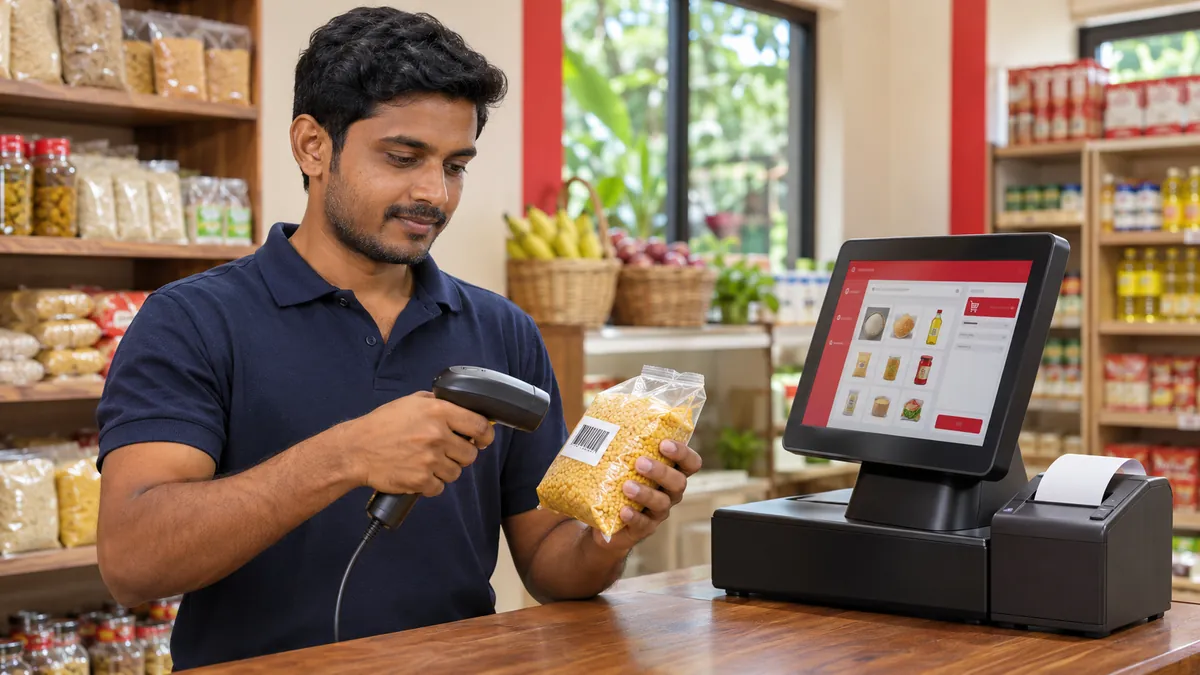
A cashier picks a product from a long list, chooses a similar-looking item by mistake, and completes the sale. The customer receives the wrong price, one product's stock falls, and another product's recorded quantity stays unchanged. Barcode billing software in Sri Lanka can help shops reduce this kind of manual selection problem by connecting a scanned code to the intended product record.
The value goes beyond a faster checkout. When billing is connected to inventory, a correctly recorded sale can also update stock and contribute to useful product reports. The result depends on clean product data, correct selling units, and a clear process for deliveries, returns, and adjustments.
This guide explains how barcode billing works, the benefits for shops, and what to test with a POS system in Sri Lanka before introducing scanners or new labels.
How Does Barcode Billing Work?
A scanner reads a code and passes its value to the POS. The software looks for the matching product or variant and retrieves the configured details needed for the bill. Staff check the item and quantity, complete the transaction, and issue the receipt.
Most ordinary retail barcodes identify a product; the description and current selling price are retrieved from a database. GS1 explains this distinction, including exceptions for specialist variable-measure formats. A scanner alone does not determine the correct price or keep a stock ledger.
A typical workflow is:
- Set up the product: confirm its name, code, selling unit, price, and opening quantity.
- Scan the package: check that the expected item or variant appears.
- Review the bill: confirm quantities, authorized discounts, and payment details.
- Complete the sale: follow the application's posting rules and print or issue the receipt.
- Check the records: verify the sale, payment, and stock movement in the relevant reports.
Ask exactly when stock is reserved or deducted. A held bill, cancelled transaction, and completed sale may have different effects. Adding an item to a screen should not be treated as proof of a completed sale.
Six Benefits of Barcode Billing for Shops
1. Less Manual Product Selection at Checkout
Scanning a mapped code can reduce the need to type a product name or browse a large menu for every packaged item. That is useful in grocery shops, minimarts, supermarkets, cosmetics counters, and other stores with many similar products.
Cashiers still need to check the displayed description and quantity. A code mapped to the wrong record can make the wrong selection consistently, so setup quality matters as much as scanning speed.
2. More Consistent Product and Price Lookup
A shared product record gives staff a defined source for the selling price and item details. This can reduce reliance on memory or handwritten price lists. Authorized staff should maintain prices and test the result at checkout after an update.
When several counters or branches are involved, check when each device receives changes. A disconnected device may not yet have the latest price. Compare connected and offline behaviour before making assumptions about what every screen shows.
3. Sales Linked to Inventory Movements
A barcode POS system with inventory management can connect the sold item and quantity with the stock record. That removes the need to enter the same completed sale into a separate stock notebook, provided the workflow is configured correctly.
Barcode billing cannot record an unentered delivery, damaged item, or missing product by itself. Use it alongside receiving, returns, stock adjustments, and physical counts. Explore the inventory management system for those wider stock-control tasks.
4. Clearer Handling of Variants and Pack Sizes
Two products may share a brand and appearance while differing in size, colour, flavour, or quantity. Accurate code mapping helps the POS select the intended stock item rather than a generic product name.
A single unit, a six-pack, and a supplier carton also need explicit handling. Confirm whether your system uses separate records or a supported unit conversion. Scanning one carton must not accidentally record the sale or receipt of one individual unit.
5. A More Traceable Return Process
A return should identify the original transaction where required, the item, the quantity, and its condition. Scanning can help select the correct product, while the returns workflow determines the refund and stock effect.
A resalable return may go back into available stock. A damaged return may need a different disposition. Test both cases instead of treating every returned item as ready to sell again.
6. More Useful Product Reports
When sales are recorded against the correct products, managers have a better basis for reviewing movement, replenishment, and slow-selling lines. Consistent identifiers can also help investigate an unexpected stock difference.
Reliable reports still depend on accurate quantities, purchasing records, and stock adjustments. Scanning is one part of the process; it does not guarantee that every physical movement has been recorded.
A Simple Example: From a Sale to the Stock Balance
Consider one shop product counted in individual units. This is an illustrative stock example, not a customer result:
| Recorded event | Movement | Recorded balance |
|---|---|---|
| Opening stock | 24 units | 24 |
| Delivery received | +12 units | 36 |
| Completed sale | −3 units | 33 |
| Resalable customer return | +1 unit | 34 |
| Damaged stock recorded | −2 units | 32 |
The barcode helps identify the product in each supported transaction. The recorded events explain why the balance becomes 32. If the delivery or damage is never entered, a correctly scanned sale alone cannot make the final quantity accurate.
For several branches, include transfers and receiving at the correct location. For stock counts during trading, agree on the count time or a supported method of accounting for movements while counting.
Barcode, SKU, and Product Record: Keep the Roles Clear
A SKU is an internal stock-keeping identifier. A barcode is a machine-readable carrier of a code or other supported data. The product record holds the business information your POS uses, such as description, selling unit, price, and stock settings.
Store codes accurately. Leading zeros can be lost when spreadsheets treat an identifier as a number, and duplicate mappings can make similar products difficult to distinguish. Check the import format before moving a product list into your POS.
For your own shop labels, use a planned internal coding approach and test how each label resolves in the software. An internal label is not automatically a globally allocated product identifier. Keep supplier codes and your own references understandable to the staff maintaining the catalogue.
Receiving, Stock Counts, and Labels Need Their Own Process
At goods receiving, verify the product, delivered quantity, selling unit, and any required batch or expiry information. Scanning a code can help identify an item, but staff still need to confirm what physically arrived.
For a stock count, test whether scanning adds one unit, prompts for a quantity, or follows another supported process. Decide how duplicate scans are handled and who approves a discrepancy. Preserve the distinction between counting stock and changing the official balance.
If you need barcode label printing, confirm the printer model, label dimensions, supported format, and placement on actual packaging. Avoid placing labels over folds or curved surfaces that make reading unreliable. Test a printed sample before producing a large batch.
Hardware shops selling loose quantities or mixed units should also review the hardware-store POS guide and discuss the intended unit and credit workflow.
Choose a Scanner That Fits Your Products
Start with the codes you need to read. A scanner that handles the required linear barcodes may suit packaged goods; products carrying two-dimensional codes need a compatible reader and application support. A 2D reader does not, by itself, make every QR code a product or payment transaction.
- Counter layout: compare a handheld or presentation scanner around the items you sell.
- Connection: confirm USB, Bluetooth, or another supported method for the operating system and application.
- Packaging: test small labels, reflective surfaces, curved packs, and labels that are difficult to reach.
- Data entry behaviour: check the selected input field and any required scanner settings.
- Mobile use: verify the intended camera or external-scanner workflow on the actual device.
Browse POS devices or hardware bundles after confirming compatibility. Our mobile POS guide covers portable stock and sales tasks.
Common Barcode Billing Problems and What to Check
- The code does not find a product: check the complete value and its mapping. Use an authorized product lookup or creation process rather than guessing an item.
- The wrong variant appears: inspect duplicate codes, imported values, and variant assignments.
- The quantity is wrong: check whether the code represents one item, a multipack, a carton, or a supported variable-measure label.
- The same item appears twice: inspect scanner behaviour and staff technique before completing the bill.
- The label cannot be read: test print quality, placement, packaging, and reader compatibility. Keep a controlled manual-lookup fallback.
- Physical stock differs: review receiving, returns, damage, transfers, cancellations, and unrecorded movements as well as sales.
Agree on who may create products, change prices, and approve stock adjustments. Clear responsibilities help prevent a quick counter workaround from becoming a catalogue problem.
How PopitCart Fits a Barcode Billing Setup
PopitCart POS software for Sri Lankan shops connects billing, product information, inventory, and reporting. Start with the retail POS system for shop checkout or billing software for the invoice and payment workflow.
Bring real products to the demonstration: a standard package, a variant, a multipack, a product without a manufacturer barcode, and any weighed item. Ask the team to show the mapping, sale, cancellation, return, receiving entry, and resulting stock report.
Confirm the selected application's offline behaviour too. Pro includes the hybrid Windows app, while Elite also includes the hybrid Android app. The cloud vs offline POS comparison explains the interruption and synchronization questions.
Use the current software packages as a starting point and request a quotation covering software, setup, data preparation, scanners, label printing, training, and support as needed. Confirm which functions and devices your package includes.
A Short Checklist Before You Go Live
- Clean the product list and preserve complete codes, variants, units, and prices.
- Count or verify opening stock using the agreed cutover process.
- Test actual packages and labels on the intended scanner and application.
- Complete a sale, hold and cancel a bill, process returns, and inspect the stock effects.
- Train staff to handle unknown codes, unreadable labels, duplicate scans, and price changes.
- Compare the first day's receipts, payments, stock movements, and physical spot checks.
For a broader comparison of software and suppliers, use our POS buying guide. Start with one tested workflow and expand once the records and staff routine are reliable.
Frequently Asked Questions About Barcode Billing
What is barcode billing software?
Barcode billing software uses a scanned code to find the matching product record and add the appropriate item to a bill. The POS applies its configured prices, quantities, discounts, and transaction rules. When connected to inventory, the relevant posted transaction can also update stock according to the configured workflow.
Does a product barcode contain its price?
Generally, a standard retail product barcode identifies the item and the POS retrieves its description and selling price from a database. Specialist variable-measure formats can encode additional information such as weight or price. Confirm the format and software configuration for your own products.
Does scanning a barcode automatically reduce inventory?
The scanner identifies the product; the POS workflow determines when inventory changes. Test a completed sale, held bill, cancelled bill, and return to establish the posting rules. Scanning alone is not proof that a sale was completed or that stock should be deducted.
Can I use the barcodes already printed on my products?
Usually, provided the code is supported and mapped to the correct product, variant, and selling unit in your POS. Test your actual packages and retain the full code, including any leading zeros. Check that a carton code and an individual-item code do not accidentally select the same quantity.
What should I do if a product has no barcode?
Discuss internal product codes and label printing with your supplier. Each label must map unambiguously to the intended product or variant in your system. Test the label on the actual packaging and confirm the printer, label size, scanner, and application before rollout.
Can barcode billing work without internet?
It can work when the intended offline application has the required product records and supports the scanner and transaction. PopitCart Pro includes the hybrid Windows app, and Elite also includes the hybrid Android app. Test lookup, billing, printing, and synchronization on your chosen setup. Devices and printers still need power.
How can I test PopitCart barcode billing for my shop?
Book a demo through the PopitCart contact page or call 011 268 7645. Bring sample products, variants, multipacks, existing scanner details, and your receipt requirements. Ask the team to demonstrate sales, cancellations, returns, receiving, and the stock report in the selected package.
See Your Products Working in PopitCart
Barcode billing is most useful when the correct product appears at checkout and the completed transaction leads to the expected records. A demo with your own packages is a practical way to check that connection.
Book a free PopitCart demo, call 011 268 7645, or email hello@popitcart.com. Tell us your business type, product range, existing scanner, and the stock problems you want to solve.