
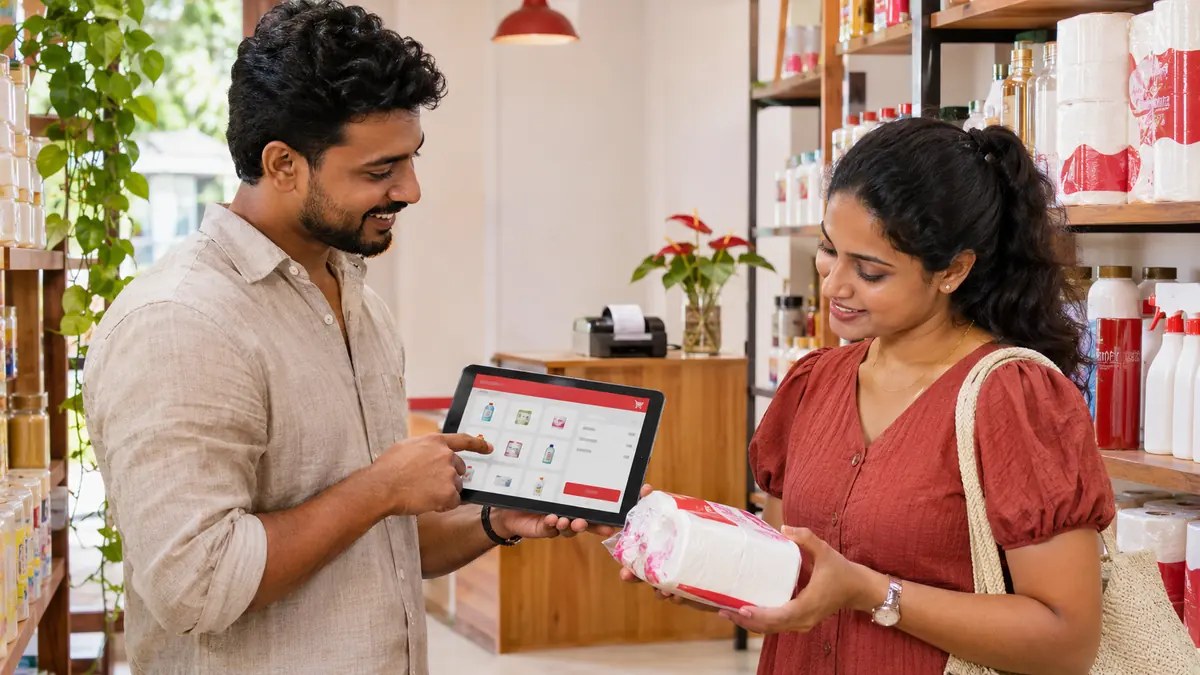
A customer asks whether a product is available in another size. A waiter needs to record an order beside a table. An owner wants to check sales while away from the shop. These are everyday reasons to consider a mobile POS system in Sri Lanka: the work does not always happen beside a fixed cash register.
Mobile point of sale software brings supported business tasks onto a phone, tablet, or handheld device. Used well, it can help staff serve customers where they are, reduce repeated data entry, and keep sales and stock information connected. The benefit comes from the workflow you improve, rather than portability alone.
This guide explains the main mobile POS benefits for Sri Lankan businesses, what to check before buying devices, and how PopitCart POS software in Sri Lanka can fit into your operation.
What Is a Mobile POS System?
A mobile POS system lets staff perform supported tasks such as product lookup, billing, order taking, stock checks, or reporting on a portable device. The software may run in a mobile browser or an installed application. Those options can have different requirements and capabilities.
Keep three uses separate when discussing your setup:
- Mobile selling: staff prepare orders or bills near the customer.
- Mobile operations: staff check products or stock beside the shelf or in the warehouse.
- Mobile management: owners review business information from another location.
Also distinguish billing software from a mobile bank card terminal. Recording how a customer paid is different from accepting or settling that payment through a bank. Ask your supplier to explain the software, payment service, hardware, and receipt flow as separate parts of the setup.
Eight Practical Benefits of Mobile POS
1. Serve Customers Away from the Counter
A portable screen lets staff look up an item or prepare a sale without repeatedly walking back to the till. In a clothing shop, for example, the assistant can check a product while discussing the customer's preferred size. In a homeware store, staff can help beside an item that is awkward to carry to the counter.
This can make service more convenient, but the complete sale still needs a clear payment and receipt process. Test where the customer pays, where the receipt prints, and how staff confirm the transaction is complete.
2. Capture Orders Where They Happen
Writing an order on paper and re-entering it later creates another step where details can be missed. A supported mobile ordering workflow can record the item, quantity, and options at the point of service.
For restaurants and cafés, demonstrate an order from the table through the kitchen ticket and final bill. Confirm the device, network, printer routing, and selected package. Explore PopitCart restaurant POS software for the relevant ordering workflow.
3. Make Stock Checks More Practical
A mobile device can bring the product record to the shelf, rather than requiring staff to carry notes back to a computer. That is useful when checking quantities, identifying products, or investigating a difference during a stock count.
Accuracy still depends on correct receiving, sales, returns, and stock adjustments. If a device is working offline, check when its records synchronize before treating another screen's quantity as current. See the inventory management system for a wider discussion of stock control.
4. Support Busy Periods with More Flexible Service
When your software, licence, and payment arrangement support it, an additional mobile station can help handle simple purchases or prepare orders while the main till serves another customer. This may reduce congestion in the right setting.
Mobile service does not remove every bottleneck. A single shared printer, payment terminal, packing area, or approval step can still limit the process. Trial the complete workflow during a controlled busy period before adding devices across the shop.
5. Give Owners Access Beyond the Shop
Mobile reporting can help an owner review sales or product information without being physically beside a cashier. For a business with several outlets, remote visibility can make it easier to identify questions for a branch manager.
Check what the report shows and when the data was last updated. An offline device may have transactions waiting to synchronize, so remote totals may not yet include its latest activity. Use individual accounts and the appropriate staff permissions for each role.
6. Use Space and Equipment More Flexibly
A compact tablet can suit a small service desk or a temporary sales point where a full desktop installation would be awkward. Existing compatible equipment may also reduce the devices you need to purchase.
Compare total costs rather than assuming a phone makes the system inexpensive. Include the software package, approved devices, protective cases, printers, connectivity, charging, and any extra counter licences. A permanent high-volume checkout may still be better served by a dedicated terminal.
7. Add an Offline Option Where the Application Supports It
A suitable offline application can keep supported local tasks available during an internet interruption. A charged mobile device also gives staff some independence from a fixed power socket.
Confirm the limits. Devices need sufficient battery charge, printers need power, and some operations or payment services may require a connection. Test an interrupted transaction and its recovery. A mobile website should not be assumed to behave like an installed offline application.
8. Expand One Tested Workflow at a Time
Mobile devices can be introduced for a specific task, such as floor service, restaurant ordering, or stock checking, while keeping an established counter. Starting with one workflow gives the team a manageable way to learn and evaluate the change.
Before expanding, confirm how many counters, users, and branches the chosen plan allows. Growth may require a different package, more equipment, or further training. Test the next workflow before purchasing several devices at once.
Where Mobile POS Can Fit Your Business
| Business | Possible use | What to test |
|---|---|---|
| Retail shop | Product lookup and assisted sales on the shop floor. | Variants, pricing, payment confirmation, and receipts. |
| Restaurant or café | Taking orders beside the table. | Modifiers, kitchen routing, duplicate-order prevention, and settlement. |
| Salon or spa | Reviewing a service or product during a consultation. | Customer access permissions, service details, and the final bill. |
| Wholesale or warehouse | Checking products and quantities near stored goods. | Selling units, scanner compatibility, stock updates, and synchronization. |
Use these as demonstration scenarios, not assumptions about every plan. Review the dedicated retail POS, salon and spa POS, or wholesale POS solution for your industry.
Mobile Browser Access and the PopitCart Android App
PopitCart provides responsive access across desktop, tablet, and mobile devices. Its published packages also distinguish installed applications: Pro includes the hybrid Windows application, while Elite also includes the hybrid Android application.
If you need an Android POS system that supports offline work, confirm the Elite application and your intended device with the team. If you need mobile browser access for reporting or connected tasks, demonstrate that workflow separately. Ask which operations, users, and devices your package covers.
Check the current PopitCart packages for pricing and request a written quotation covering software, setup, hardware, and support. Our POS buying checklist can help you compare the full scope.
What to Check Before Setting Up Mobile POS
- Device compatibility: confirm the operating system, screen size, app requirements, battery life, and storage needed.
- Connectivity: test the actual service area, including corners of the shop, outdoor seating, or warehouse aisles.
- Scanning: demonstrate the camera or scanner option on your real barcodes.
- Printing: confirm the exact printer model and connection method supported by the intended app.
- Payments: verify the bank or provider arrangement and how staff confirm cash, card, or QR payments.
- Staff access: set permissions, device locks, shift handover rules, and a process for a lost device.
- Daily operation: agree on charging, updates, synchronization checks, and end-of-day reconciliation.
Show the team any equipment you already own before buying replacements. Browse POS devices and hardware bundles once compatibility and your workflow are clear.
Measure the Benefit with a Small Pilot
Choose one task and one device for the first trial. Record the current number of steps, time taken, and common corrections. Train staff, test with sample transactions, and then review a controlled period of real operation.
For floor service, track whether staff make fewer trips to the counter. For restaurant ordering, review corrections and whether the right kitchen receives each ticket. For stock checks, compare how long it takes to investigate a discrepancy.
Also inspect the closing records: sales, payments, printed receipts, returns, and synchronized transactions. Expand when the workflow is reliable and the improvement is useful to your business. Avoid judging success by the number of devices alone.
Frequently Asked Questions About Mobile POS
What is a mobile POS system?
A mobile point of sale system lets staff perform supported sales and business tasks on a phone, tablet, or handheld device. Depending on the software and package, those tasks can include billing, product lookup, order taking, stock checks, and reporting. A mobile bank card terminal alone does not provide all of these functions.
What are the main mobile POS benefits for Sri Lankan businesses?
Mobile POS can help staff serve customers away from a fixed counter, capture orders where they happen, check stock beside the shelf, and review business information remotely. The actual benefit depends on the workflow, device compatibility, connectivity, staff training, and software package.
Does PopitCart mobile POS work without internet?
PopitCart Elite includes a hybrid Android application for offline operation. Pro includes the hybrid Windows application. Mobile browser access is a separate capability and should not be assumed to provide the same offline functions. Test the required Android device, billing, printing, and synchronization with the team before rollout.
Can I use an Android phone or tablet as a POS?
A compatible Android device can be part of a mobile POS setup. Confirm the operating-system version, screen size, application requirements, scanner options, printer connection, and package with the supplier. Test the complete sale and receipt workflow on the device you plan to use.
Does mobile POS automatically let my phone accept card payments?
No. Recording a card payment in billing software is different from processing it through a bank or payment provider. Card acceptance, QR payment confirmation, and any integration require a supported provider arrangement and setup. Confirm the exact payment flow before advertising a payment method to customers.
Can mobile POS replace every fixed checkout counter?
It depends on your operation. A mobile device may suit floor service or a small sales point, while a busy grocery counter may still need a fixed scanner, printer, drawer, or scale. Many businesses benefit from using mobile devices alongside a permanent till. Compare the whole workflow before replacing equipment.
How can I try PopitCart mobile POS for my business?
Book a demo through the PopitCart contact page or call 011 268 7645. Bring your device details, sample products, payment requirements, and printing needs. Ask the team to confirm the application, package, counters, hardware, and setup covered by your quotation.
Explore Mobile POS with PopitCart
The strongest mobile POS benefits come from connecting the work staff do near customers with the records the business needs. Choose a clear task, check the device and application, and test the complete transaction before expanding.
Explore PopitCart's POS platform or book a free mobile POS demo. Call 011 268 7645 or email hello@popitcart.com with your business type, device details, and the mobile workflow you want to improve.