
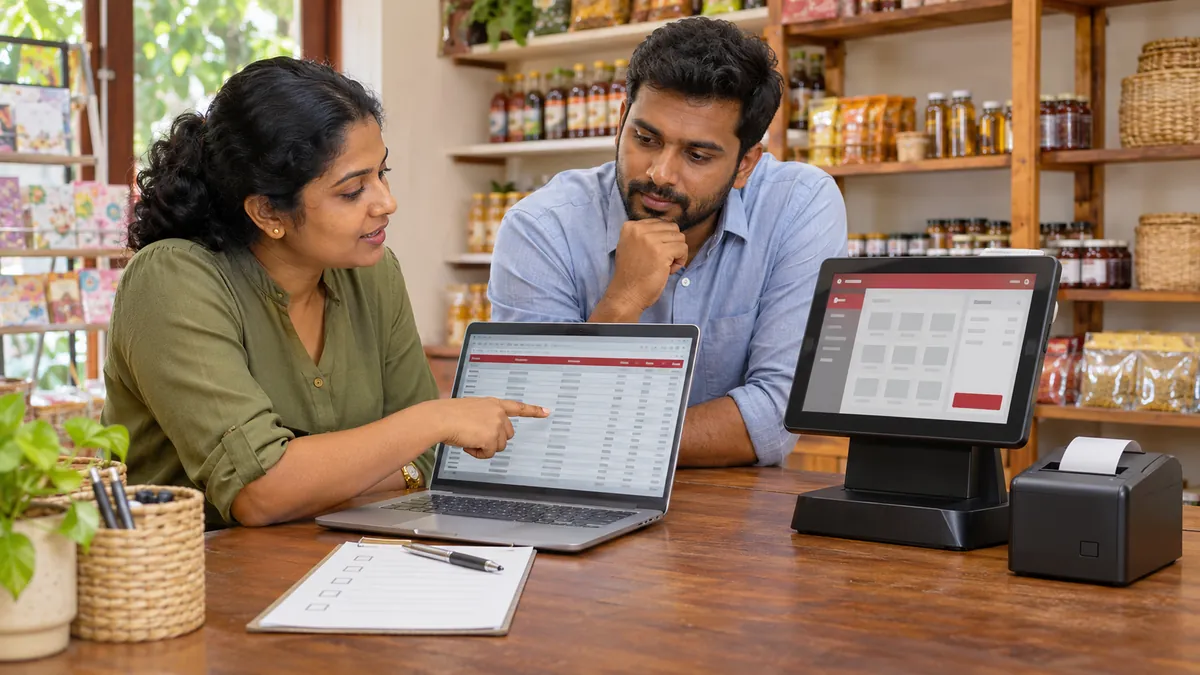
Your product list is in one workbook, stock quantities are in another, and customer balances sit on a separate sheet. Moving to a POS system can bring daily work together, but first you need a plan for preserving the records you already rely on.
A careful Excel to POS migration in Sri Lanka starts with a complete source archive, a confirmed import scope, a test on copied data, and checks before the first live sale. Preserving records does not require every historical worksheet to become a live transaction inside the new system. Some information may be imported; other history may remain in an accessible archive.
This guide gives shop owners a practical process for moving to a POS system in Sri Lanka. Confirm the target system's supported fields and migration service before preparing the final files.
First Decide What Needs to Move
List every workbook, sheet, and supporting file used by the business. Include product lists, supplier records, customer credit, stock by branch, sales history, returns, and any documents used to explain balances. Record who maintains each source and which version is authoritative.
Separate three destinations:
- Operational records: the products, customers, suppliers, and settings needed for daily work, where supported.
- Opening positions: agreed stock quantities and balances at the changeover time, using the approved method.
- Historical reference: retained workbooks, invoices, reports, and supporting records that remain available outside the POS where appropriate.
Agree with the migration team and the person responsible for your books how old transactions relate to opening balances. Re-entering old invoices as new sales can distort the new system. Importing transaction history and carrying the same balances again can also create duplication.
Step 1: Preserve the Original Workbooks
Before cleaning or exporting, keep a dated copy of each original workbook and its related source files. Retain the folder structure or an index explaining which documents belong together. Keep a second backup in a separate suitable location and confirm that the copies open.
Use working copies for preparation. Preserve the originals as a reference so you can compare a changed product code, investigate a balance, or reconstruct the source of an imported record. Decide who can edit the preparation files and how versions will be named.
A CSV export is not a full workbook backup. Microsoft explains that changing file formats can lose workbook features. Text exports do not preserve the complete multi-sheet workbook. Keep the original file even when a supplier requests CSV for a specific import.
Step 2: Agree on the Import Scope and Field Mapping
Ask the POS supplier for the supported format, required fields, data limits, and import behaviour. Confirm which records can be created or updated, how duplicates are detected, and how rejected rows are reported. Do this before rebuilding your spreadsheets around an assumed template.
Use a mapping worksheet to connect each source column with its proposed destination. The example below is a planning aid, not an approved PopitCart import template.
| Source information | Proposed use | Check before importing |
|---|---|---|
| Product code or SKU | Stable internal product identifier. | Unique where required, treated as text, and linked to the correct variant. |
| Barcode | Supported checkout lookup code. | Complete value, leading zeros, and product or pack mapping. |
| Unit and quantity | Opening stock by item and location. | Pieces, packs, boxes, weight, and any approved conversions. |
| Price and cost | Supported pricing and valuation fields. | Meaning, currency, decimal convention, and the agreed treatment of costs. |
| Customer or supplier reference | Matching contact or account record. | Stable identity, duplicate handling, and required contact fields. |
| Balance or document reference | Approved opening position or retained history. | As-of time, sign convention, supporting documents, and no double-counting. |
For each field, record an example source value, the agreed conversion if any, and the person approving it. Keep the mapping with your migration records.
Step 3: Clean Data Without Changing Its Meaning
Protect Codes and Contact References
Product codes, barcodes, and phone numbers are identifiers rather than amounts to calculate. Prepare them as text where required and compare the full values after export and import. Microsoft documents Excel's handling of leading zeros and long numbers; applying a format later will not restore digits already changed.
If a code has been damaged, compare it with an authoritative source such as the original product label or supplier file. Do not guess missing digits. Our barcode billing guide explains why accurate mapping matters at checkout.
Resolve Duplicates, Variants, and Units
Do not merge records on product name alone. Two rows may represent different sizes, colours, pack quantities, or locations. Decide whether repeated rows are genuine duplicates, separate stock positions, or different trade items.
Check that quantities use the intended selling unit. One box and one individual item should not become the same quantity accidentally. Sort whole tables rather than a single column so codes, names, and amounts stay attached to the correct row.
Inspect Formulas, Dates, and Language
Review formula errors, external workbook links, hidden rows, and filters before preparing import values. Keep the formula-based source, and create a separate values-only copy if the approved import requires it. Verify the calculated results rather than assuming the export is complete.
Confirm date and decimal formats with the supplier. An ambiguous day-and-month value can be interpreted differently. Test Sinhala and Tamil names, punctuation, and the required file encoding using representative records.
Step 4: Reconcile Opening Stock and Balances
Choose an as-of time for the opening records. Reconcile stock by product, unit, and location using the agreed count or verification process. Investigate unexplained negative quantities, missing units, and differences between sheets before importing them as the starting position.
Agree how transactions between the stock check and changeover will be tracked. If trading continues while a count is performed, use a supported process to account for those movements. Otherwise the new system may start with a quantity that was correct at a different time.
For customer and supplier balances, reconcile each account with supporting records and have the responsible person approve the result. Agree how partial payments, credits, returns, and historical documents will be represented. A matching grand total alone does not prove that each customer's balance is correct.
Our guide to managing customer credit with POS software explains how to keep those balances accurate after changeover, including partial payments and return credits.
The inventory management system and billing software pages provide starting points for discussing your future stock and account workflow.
Step 5: Run a Test Import on Copies
Use a separate test environment or another supplier-approved trial method. Start with a representative sample: ordinary products, variants, a multipack, a fractional unit if needed, a long code, a leading-zero code, and local-language text.
Include the record types that are actually in scope, and follow the supplier's required import order. Contact records or product definitions may need to exist before related data can be linked. Do not assume an arbitrary upload order will preserve those relationships.
Keep the source filename, version, import result, and exception list. Ask whether repeating the same file creates duplicates, updates existing records, or skips rows. Confirm the handling of the first attempt before retrying it.
Step 6: Check the Results Beyond a Success Message
Reconcile every source row with an imported record or a documented outcome. A file being accepted does not establish that every row or field was imported.
- Record counts: compare source rows, created records, updated records, skipped rows, duplicates, and rejects.
- Identity: inspect complete codes and links between products, variants, customers, suppliers, and locations.
- Stock: compare quantities by product, unit, and branch rather than combining unlike units into one total.
- Balances: compare the approved amount for each account as well as the agreed control totals.
- Sample details: check prices, dates, language, decimals, and any other fields that drive daily work.
- Workflow: test a sale, held or cancelled bill, return, receipt, and the resulting reports.
For example, if a source file contains 500 products, account for all 500 source rows. A result of 496 created records is not automatically wrong if four outcomes are explained, but those four rows must not disappear from the migration review. Correct or explicitly resolve exceptions before approval.
Keep a reconciliation sheet listing each issue, decision, correction, and approver. Retain the checked export or report from the target system so the comparison can be reviewed later.
Step 7: Train Staff and Set One Changeover Time
Train cashiers with test records before opening live trading. Include item lookup, scanning, corrections, returns, receipt printing, and end-of-day checks. Managers should practise the reports and approvals they will use.
Choose a clear time after which live sales will be entered in the POS. Identify which final Excel version represents the closing position, who records any late changes, and who approves the opening POS records.
Keep old workbooks available as reference where needed, but avoid two uncontrolled transaction-entry systems. If you use a parallel checking exercise, define how it is reconciled without posting the same sale twice.
Use the retail POS system demo to rehearse your shop workflow. Businesses with other operational needs can discuss the appropriate industry solution before migration scope is finalized.
Step 8: Plan Recovery and Review the First Trading Days
Agree on a fallback before launch: who makes the decision, how new transactions will be preserved, and what process will keep records complete if the changeover is paused. Preserve test and live records separately.
If you return temporarily to another entry method, account for every transaction recorded after the changeover. Restoring an earlier position without preserving and reconciling newer activity can create the very gaps you were trying to avoid. Follow the supplier's supported recovery method.
During the first trading days, compare receipts, payment records, returns, stock movements, and selected physical quantities. Check that users know where historical records are stored and how to contact support.
If uninterrupted billing is part of your setup, review our cloud vs offline POS guide and test the intended application's interruption and synchronization process.
What to Ask PopitCart Before Moving Your Records
PopitCart POS software for Sri Lankan businesses connects billing, inventory, customer information, and reporting. Your existing spreadsheets need a separate migration discussion so the team can confirm how their data fits the selected setup.
- Which record types and fields can be imported for my requirements?
- Which template and file format should I prepare?
- How will products, units, branches, customer balances, and old invoices be handled?
- Who cleans data, resolves exceptions, and approves the opening position?
- What are the migration cost, training arrangements, acceptance checks, and recovery steps?
Use a suitable sample for the first review and agree on a secure transfer method before sharing real business records. Check the current packages and obtain a written quotation for the software and services you need. The article does not assume every historical field or workbook feature can be imported.
For the wider purchasing decision, see our POS buying guide.
Frequently Asked Questions About Excel-to-POS Migration
Can I move all my Excel records into a POS system?
The supported import scope depends on the POS, package, fields, file format, and migration service. Product lists, stock, customer records, balances, and transaction history may need different handling. Keep the original workbooks and a searchable archive, then agree which records will be imported and how the remaining history will stay accessible.
Is a CSV file enough as a backup of my Excel workbook?
No. A CSV export is a text representation of a worksheet and does not preserve the full workbook, its formulas, formatting, and other features. Keep the original workbook and related source files separately. Create import files from working copies in the format approved for the target system.
How do I preserve leading zeros in barcodes and product codes?
Treat identifiers as text when preparing and importing the data. Compare the exported values with the authoritative source, including leading zeros and long codes. Formatting a value after digits have already been removed or changed will not reconstruct the original identifier.
Do I need to import every old invoice before using the POS?
Not necessarily. Agree which history must be available inside the POS and which can remain in a retained archive. Decide with the migration team and the person responsible for your books how historical transactions and opening balances will be handled. Importing both without a reconciliation plan can double-count records or balances.
How can I check that records were not missed during migration?
Compare source and imported record counts, stable identifiers, quantities by product and location, and agreed balance totals. Inspect rejected, skipped, and duplicate rows as well as successful imports. Check representative records and run a sale, cancellation, return, and report review before approving the changeover.
Should I keep entering sales in Excel after switching to POS?
Set one authoritative place for live transaction entry from the agreed changeover time. Keep Excel available as a reference archive where needed. Any parallel checking or fallback entries must have a clear reconciliation process so the same sale is not entered twice or omitted.
How do I arrange Excel-to-PopitCart migration help?
Contact PopitCart on 011 268 7645 or use the contact page. Describe your workbooks, branches, product units, balances, and required history. Ask the team to review a suitable sample and confirm supported imports, templates, responsibilities, cost, timing, and acceptance checks before setup.
Start with a Checked Sample and a Clear Plan
The strongest way to preserve records is to know what you have, keep the originals, test the mapping, and reconcile the outcome. A controlled changeover then connects those checked opening records with the first live sale.
Book a free PopitCart demo, call 011 268 7645, or email hello@popitcart.com. Describe your current workbooks, branches, and migration priorities so the team can discuss the supported approach.